How to create named PDF certificates from a CSV
Map spreadsheet columns onto a certificate design, preview individual rows, and fix names that are too long or missing.
By PDF Bop ·
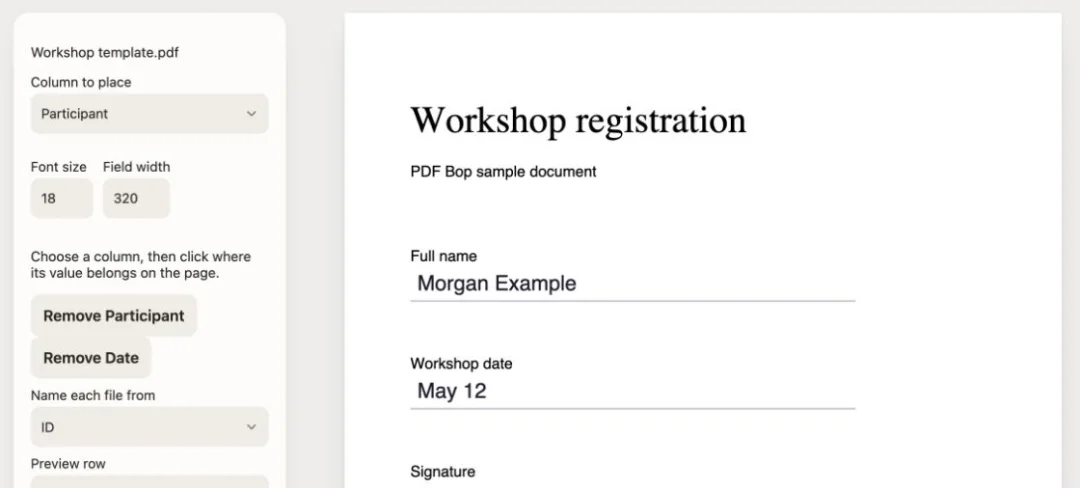
Start with a blank one-page certificate PDF and a CSV with one header row and one row per recipient. Give the columns names that make sense in the editor.
Participant,Course,Certificate ID
Avery Chen,Field workshop,FW-001
Jordan Blake,Field workshop,FW-002- Open Fill PDF certificates in bulk and select the Certificate PDF and Spreadsheet.
- In Column to place, choose Participant and click where the name goes. Add other columns to their own locations if needed.
- Choose a unique column such as Certificate ID in Name each file from, or use row numbers.
- Cycle through Preview row, including the longest name. Adjust Font size or Field width when a value does not fit.
- Fix rows marked as needing attention. Download up to three clean sample PDFs and check their text and filenames.
If a title overlaps the border, check whether all names still fit after changing the size. Keep a unique identifier for each person when two attendees share a name. Review a short name, the longest name, and the final row before preparing a full batch.