How to prepare a PDF submission packet with separate file size limits
Confirm requirements for each upload slot, preview the file sizes, and prepare individual PDFs with clear filenames.
By PDF Bop ·
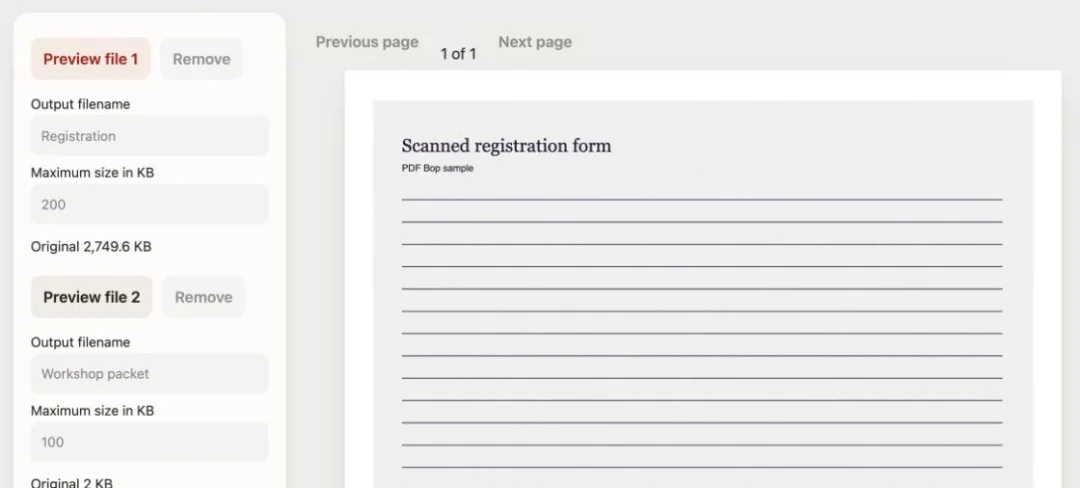
A portal may ask for several separate PDFs. For example, it might accept a 500 KB cover letter and a 2,000 KB supporting exhibit in two different slots. Keep the files separate if those are the stated requirements.
Set up a packet
- Open Prepare a PDF submission packet and add the requested PDFs.
- Give each output a distinct Output filename, such as
Cover-letter.pdforExhibit-A.pdf. - Enter the Maximum size in KB shown for that file by the recipient.
- Select Preview outputs. Review the result against each limit and open the file preview to check readability.
- If an output still exceeds its limit, revise the source PDF or choose fewer pages if the recipient allows it, then run the preview again.
The packet workflow keeps each PDF separate and groups the outputs in one ZIP where export is enabled. If a portal expects individual PDFs, unpack the ZIP and upload each file to its designated slot. The public preview can be used to check names and file sizes before export.