How to merge PDFs into one file in the right order
Combine a cover sheet, form, and attachments into one PDF, then check the page order before sending it.
By PDF Bop ·
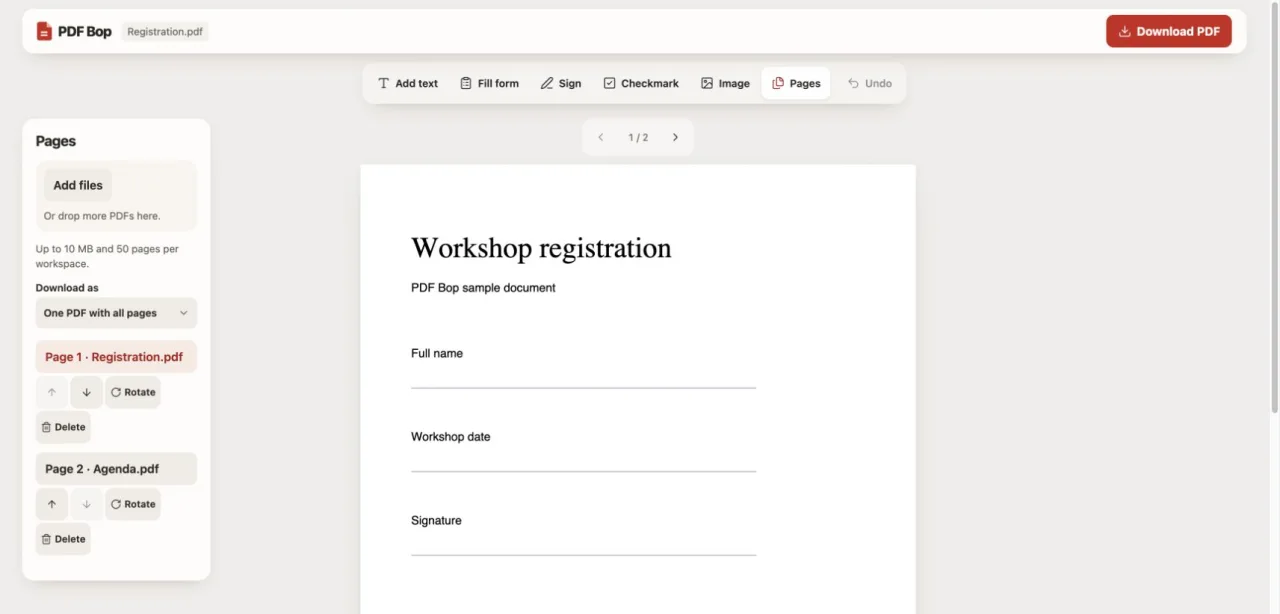
Use Merge PDFs when the recipient expects one document. A typical submission might start with a signed cover sheet, followed by the application and then its supporting documents.
Build the combined page order
- Open the first PDF in the merge tool. Add the remaining PDFs with Add files.
- Review the numbered list in Pages. Each row shows the source filename so you can tell similarly formatted pages apart.
- Use the up and down controls to move individual pages. For a three-part application, check the transition from the last application page to the first attachment.
- Set Download as to One PDF with all pages, then choose Download PDF.
Check the handoff
For a one-page cover sheet, a three-page application and two one-page attachments, expect six pages. Open the export and check pages 1, 2, and 5 to verify that each section starts in the right place. Check the last page too, especially if several source files have similar names.
If the portal gives you separate upload slots with different file size limits, keep each document separate and use a submission packet to prepare the named files.