How to sign a PDF on iPhone
Type or draw your signature in Safari, put it on the signature line, and save the PDF to share.
By PDF Bop ·
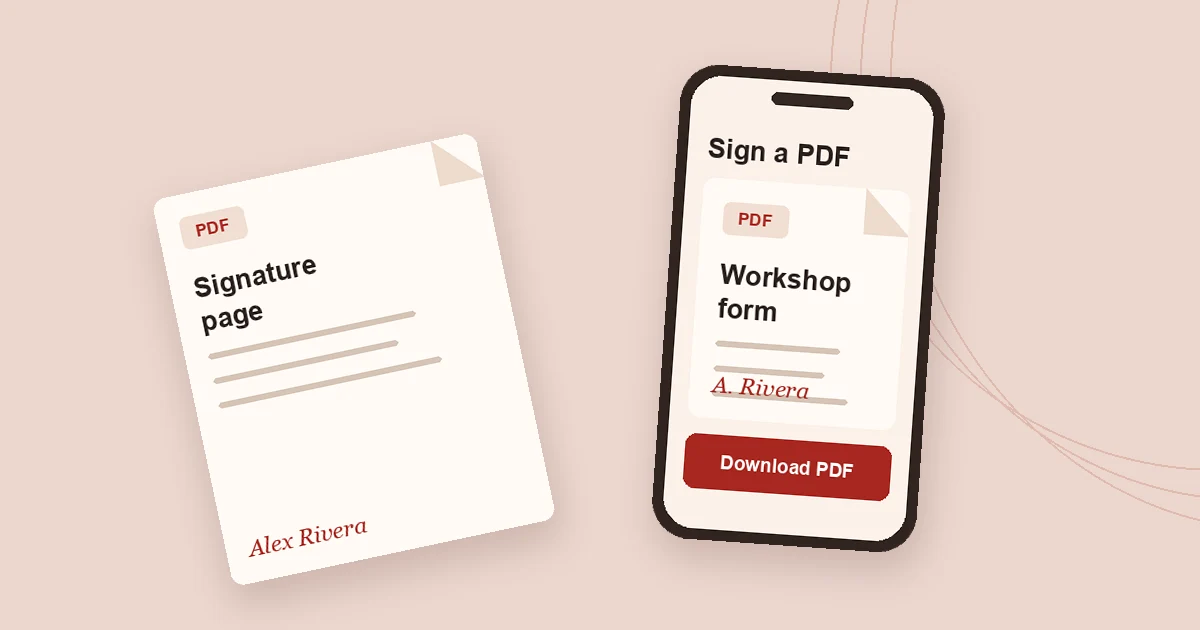
Save the PDF from your email, message, or browser first so it appears in Files or your browser’s download picker. Open it in Safari with PDF Bop when you are ready to sign.
Place a signature in the document
- Go to Sign a PDF and choose your file.
- Under Signature method, choose Type, Draw, or Import image. If you choose Draw, sign in the drawing area and tap Use drawing.
- Open the page with the signature line. Tap where the signature belongs and check that it sits on the line.
- Use Move in Added to this page if it needs adjusting. For an imported image or drawing, check its size against the other text.
- Tap Download PDF and open the saved copy before attaching or sharing it.
A signature placed this way is a visible mark on the page. Some recipients require a certificate-backed digital signature or a specific signature service. Check their instructions before relying on a drawn or typed mark.