How to remove duplicate pages from a PDF
Find repeated or nearly identical pages, remove the copies you do not need, and verify the new PDF.
By PDF Bop ·
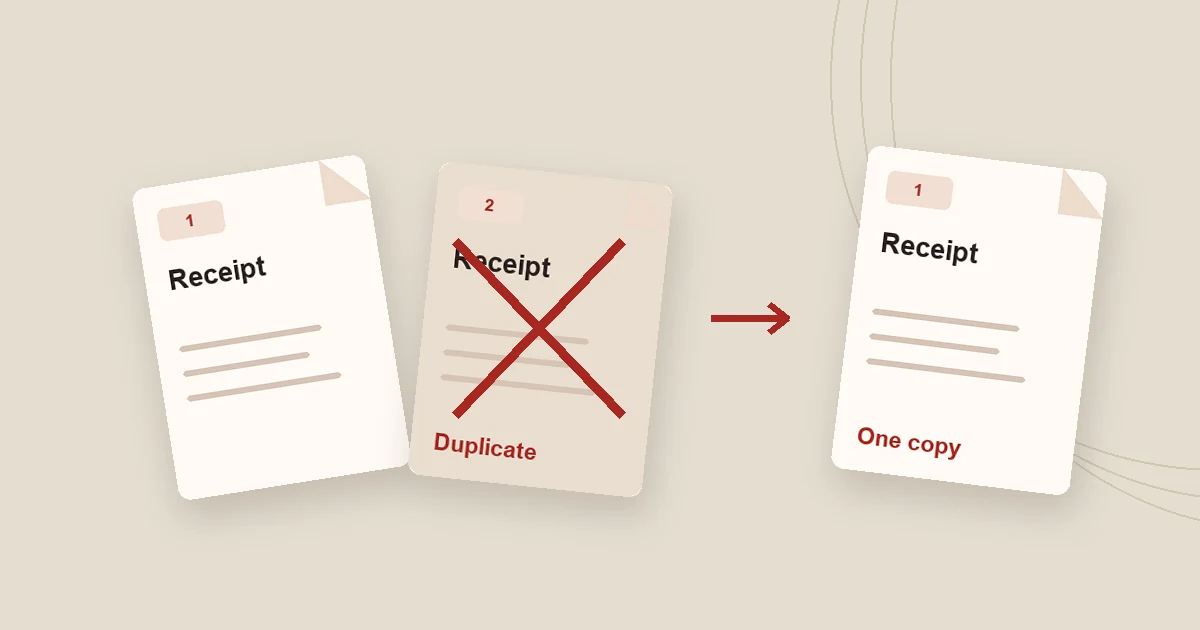
Scanners sometimes capture the same sheet twice. Two similar-looking pages can also be originals with different dates or notes, so compare them before you delete either one.
Identify the copy you want to remove
- Open the document in Delete PDF Pages.
- Select the suspected duplicate in the page list and compare its preview with the other copy. Check the footer, the date, and any signature or handwritten note.
- Use Delete on the unwanted row. Check the preview immediately afterward because following page numbers move up.
- If the remaining copy was the wrong one, use Undo, then compare the two again.
- Choose Download PDF and open the exported copy. Check the pages surrounding the deletion to make sure they still read in order.
If many pages are repeated and you only need a few, it may be quicker to extract the pages you want. Keep the original until you have checked that all unique pages survived.