How to place a photo, logo, or stamp on a PDF
Place a PNG or JPG on an existing PDF page, adjust the width, and check the exported result.
By PDF Bop ·
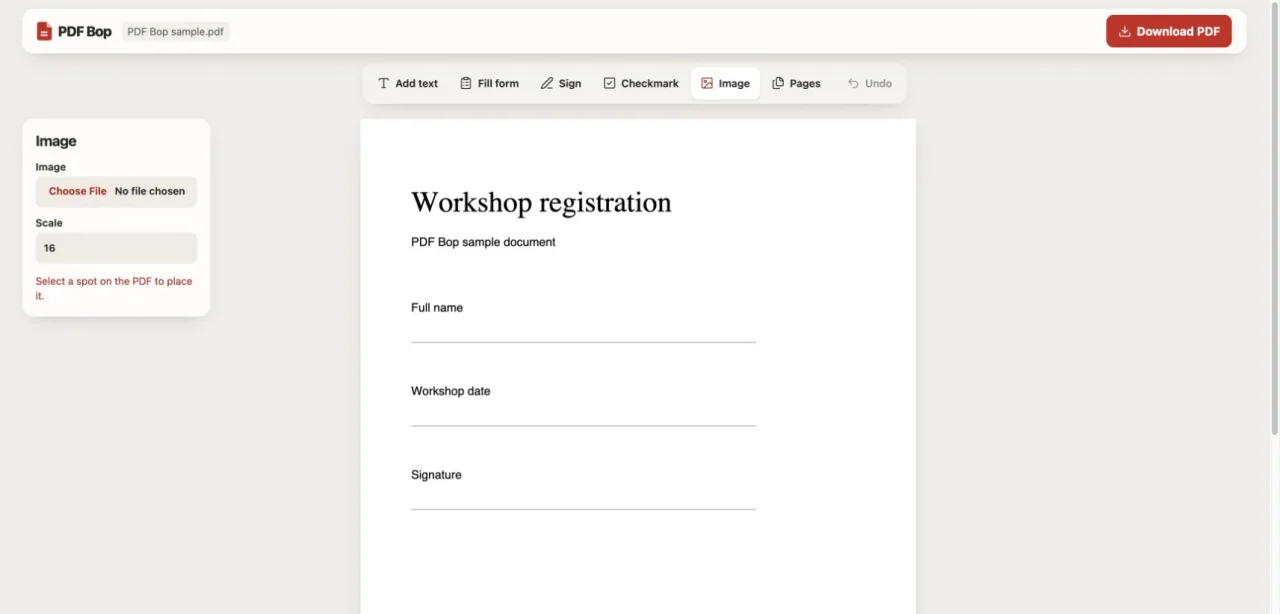
Use an image overlay when a photo, stamp, or logo belongs on a PDF you already have. If you are starting from a set of photos and want each photo on its own page, use Convert JPG or PNG to PDF instead.
Place the image
- Open your existing PDF in Add an Image to a PDF.
- Choose a PNG or JPG in Image and adjust Scale.
- Click the intended spot on the page.
- In Added to this page, adjust Image width, select Move to place it again, or select Remove and start over.
- Download the PDF and reopen it to check for clipping or overlaps.
Choose an image that fits the page
Use a PNG with transparency for a logo or mark that should sit cleanly over the page. A JPG works well for a rectangular photo. If an image appears to have a solid box behind it, check the source image before you adjust its size. Resizing preserves the source background.
Placing an image adds a new layer to the page. To replace an existing embedded image in a supported PDF, use the original-content editor.